Work in Progress - Custom Editor Mode in UE5
Learn how to make a custom editor mode with no source edits

Introduction
In this post you’ll learn to create a custom editor mode to interface with your systems step by step.
Will include examples, custom styling and an example project with more in depth implementations for my Grid Gen, showcasing the full potential of a system like this.
It is assumed that you replace
Examplewith your own name to fit your needs.
For example if i was to make a Grid system, I would be calling itGridEditorMode
If you then copy and paste the file and searchExample, you’ll find all edits you would need to do with explanatory comments where needed.
Getting started
To get started, we will create a new Plugin that will hold all our logic.
Note that you can do it directly in the Source of the project too.
You wanna go Edit -> Plugins -> Add, then select Blank and fill out the informations.
I called my plugin ExampleEditorModePlugin.
There is an
Editor Mode templateavailable, but we are creating one from scratch to understand the inner workings of the entire system.
This version includes cleanup and a custom style too!
ExampleEditorModePlugin.uplugin
Make sure "Type": "Runtime", is instead of "Type": "Editor",
ExampleEditorModePlugin.Build.cs
You want these Private dependecies to start off:
1
2
3
4
5
6
7
8
9
10
11
12
13
14
15
16
17
18
PrivateDependencyModuleNames.AddRange(
	new string[]
	{
		"CoreUObject",
		"Engine",
		"Slate",
		"SlateCore",
		"InputCore",
		"EditorFramework",
		"EditorStyle",
		"UnrealEd",
		"LevelEditor",
		"InteractiveToolsFramework",
		"EditorInteractiveToolsFramework",
		"Projects"
		// ... add private dependencies that you statically link with here ...
	}
	);
Headers
We are gonna storm through the headers.
The most important part of this are the implementations, if there’s something to be noted it will be under the full code.
ExampleEditorMode.h
This is our core file that everything will depend on.
1
2
3
4
5
6
7
8
9
10
11
12
13
14
15
16
17
18
19
20
21
22
23
24
25
26
27
28
29
30
#pragma once

#include "CoreMinimal.h"
#include "Tools/UEdMode.h"
#include "ExampleEditorMode.generated.h"

/**
 * This class provides an example of how to extend a UEdMode to add some simple tools
 * using the InteractiveTools framework. The various UEdMode input event handlers (see UEdMode.h)
 * forward events to a UEdModeInteractiveToolsContext instance, which
 * has all the logic for interacting with the InputRouter, ToolManager, etc.
 * The functions provided here are the minimum to get started inserting some custom behavior.
 * Take a look at the UEdMode markup for more extensibility options.
 */
UCLASS()
class UExampleEditorMode : public UEdMode
{
	GENERATED_BODY()

public:
	const static FEditorModeID EM_ExampleEditorModeId;

	UExampleEditorMode();
	virtual ~UExampleEditorMode();

	/** UEdMode interface */
	virtual void Enter() override;
	virtual void CreateToolkit() override;
	virtual TMap<FName, TArray<TSharedPtr<FUICommandInfo>>> GetModeCommands() const override;
};
ExampleEditorModeCommands.h
This class contains info about the full set of commands used in this editor mode.
1
2
3
4
5
6
7
8
9
10
11
12
13
14
15
16
17
18
19
#pragma once

#include "CoreMinimal.h"
#include "Framework/Commands/Commands.h"

/**
 * This class contains info about the full set of commands used in this editor mode.
 */
class FExampleEditorModeCommands : public TCommands<FExampleEditorModeCommands>
{
public:
	FExampleEditorModeCommands();

	virtual void RegisterCommands() override;
	static TMap<FName, TArray<TSharedPtr<FUICommandInfo>>> GetCommands();

protected:
	TMap<FName, TArray<TSharedPtr<FUICommandInfo>>> Commands;
};
ExampleEditorModeToolkit.h
This FModeToolkit just creates a basic UI panel that allows various InteractiveTools to
be initialized, and a DetailsView used to show properties of the active Tool.
1
2
3
4
5
6
7
8
9
10
11
12
13
14
15
16
17
18
19
20
21
22
23
#pragma once

#include "CoreMinimal.h"
#include "Toolkits/BaseToolkit.h"
#include "ExampleEditorMode.h"

/**
 * This FModeToolkit just creates a basic UI panel that allows various InteractiveTools to
 * be initialized, and a DetailsView used to show properties of the active Tool.
 */
class FExampleEditorModeToolkit : public FModeToolkit
{
public:
	FExampleEditorModeToolkit();

	/** FModeToolkit interface */
	virtual void Init(const TSharedPtr<IToolkitHost>& InitToolkitHost, TWeakObjectPtr<UEdMode> InOwningMode) override;
	virtual void GetToolPaletteNames(TArray<FName>& PaletteNames) const override;

	/** IToolkit interface */
	virtual FName GetToolkitFName() const override;
	virtual FText GetBaseToolkitName() const override;
};
ExampleEditorModeStyle.h
This FExampleEditorModeStyle will hold all the Style info for our Editor Mode.
Will allow us to have custom icons for example.
1
2
3
4
5
6
7
8
9
10
11
12
13
14
15
16
17
18
19
20
21
22
23
24
25
#pragma once

#include "Templates/SharedPointer.h"

struct FSlateBrush;

class EXAMPLEEDITORMODEPLUGIN_API FExampleEditorModeStyle
{
public:
	static void Initialize();

	static void Shutdown();

	static TSharedPtr< class ISlateStyle > Get();

	static FName GetStyleSetName();

	// use to access icons defined by the style set by name, eg GetBrush("BrushFalloffIcons.Smooth")
	static const FSlateBrush* GetBrush(FName PropertyName, const ANSICHAR* Specifier = NULL);

private:
	static FString InContent(const FString& RelativePath, const ANSICHAR* Extension);

	static TSharedPtr< class FSlateStyleSet > StyleSet;
};
Implementations
ExampleEditorModeStyle.cpp
We start with implementing the Style since it’s self contained and others rely on it.
Download this icon and place it into YourProject -> Plugins -> ExampleEditorMode -> Content -> Icons 
If you want to use Editor included ones, have a look here
https://github.com/EpicKiwi/unreal-engine-editor-icons
1
2
3
4
5
6
7
8
9
10
11
12
13
14
15
16
17
18
19
20
21
22
23
24
25
26
27
28
29
30
31
32
33
34
35
36
37
38
39
40
41
42
43
44
45
46
47
48
49
50
51
52
53
54
55
56
57
58
59
60
61
62
63
64
65
66
67
68
69
70
71
#include "ExampleEditorModeStyle.h"
#include "Interfaces/IPluginManager.h"
#include "Styling/SlateStyleRegistry.h"

#define IMAGE_PLUGIN_BRUSH( RelativePath, ... ) FSlateImageBrush( FExampleEditorModeStyle::InContent( RelativePath, ".png" ), __VA_ARGS__ )

// This is to fix the issue that SlateStyleMacros like IMAGE_BRUSH look for RootToContentDir but StyleSet->RootToContentDir is how this style is set up
#define RootToContentDir StyleSet->RootToContentDir

FString FExampleEditorModeStyle::InContent(const FString& RelativePath, const ANSICHAR* Extension)
{
  // Points to the Plugin Content directory, replace "ExampleEditorModePlugin" with your Plugin name
	static FString ContentDir = IPluginManager::Get().FindPlugin(TEXT("ExampleEditorModePlugin"))->GetContentDir();
	return (ContentDir / RelativePath) + Extension;
}

TSharedPtr< FSlateStyleSet > FExampleEditorModeStyle::StyleSet = nullptr;
TSharedPtr< class ISlateStyle > FExampleEditorModeStyle::Get() { return StyleSet; }

FName FExampleEditorModeStyle::GetStyleSetName()
{
	static FName ExampleStyleName(TEXT("ExampleStyle"));
	return ExampleStyleName;
}

const FSlateBrush* FExampleEditorModeStyle::GetBrush(FName PropertyName, const ANSICHAR* Specifier)
{
	return Get()->GetBrush(PropertyName, Specifier);
}

void FExampleEditorModeStyle::Initialize()
{
	// Texture size definitions
	const FVector2D Icon16x16(16.0f, 16.0f);
	const FVector2D Icon20x20(20.0f, 20.0f);
	const FVector2D Icon40x40(40.0f, 40.0f);

	// Only register once
	if (StyleSet.IsValid())
	{
		return;
	}

	StyleSet = MakeShareable(new FSlateStyleSet(GetStyleSetName()));

	// If we get asked for something that we don't set, we should default to editor style
	StyleSet->SetParentStyleName("EditorStyle");

	// Icons path - replace "ExampleEditorModePlugin" with your Plugin name
	StyleSet->SetContentRoot(IPluginManager::Get().FindPlugin(TEXT("ExampleEditorModePlugin"))->GetContentDir());
	StyleSet->SetCoreContentRoot(IPluginManager::Get().FindPlugin(TEXT("ExampleEditorModePlugin"))->GetContentDir());

	// Editor Mode icon, when needing to use it, call it with ExampleEditorMode.ExampleEdMode for example
  // Naming should be "PluginName.YourCustomName" - "Icons/icon_Example_16px" is the actual Texture, it expects a .png
	StyleSet->Set("ExampleEditorMode.ExampleEdMode", new IMAGE_PLUGIN_BRUSH("Icons/icon_Example_16px", Icon16x16));

	FSlateStyleRegistry::RegisterSlateStyle(*StyleSet.Get());
}

#undef RootToContentDir
#undef IMAGE_PLUGIN_BRUSH

void FExampleEditorModeStyle::Shutdown()
{
	if (StyleSet.IsValid())
	{
		FSlateStyleRegistry::UnRegisterSlateStyle(*StyleSet.Get());
		ensure(StyleSet.IsUnique());
		StyleSet.Reset();
	}
}
ExampleEditorMode.cpp
1
2
3
4
5
6
7
8
9
10
11
12
13
14
15
16
17
18
19
20
21
22
23
24
25
26
27
28
29
30
31
32
33
34
35
36
37
38
39
40
41
42
43
44
45
46
47
#include "ExampleEditorMode.h"
#include "ExampleEditorModeToolkit.h"
#include "InteractiveToolManager.h"
#include "ExampleEditorModeCommands.h"
#include "ExampleEditorModeStyle.h"

#define LOCTEXT_NAMESPACE "ExampleEditorMode"

const FEditorModeID UExampleEditorMode::EM_ExampleEditorModeId = TEXT("EM_ExampleEditorMode");

UExampleEditorMode::UExampleEditorMode()
{
	//FModuleManager::Get().LoadModule("EditorStyle");

  // "Example" is the name that's gonna show up in the Mode dropdown menu
  // "ExampleEditorMode.ExampleEdMode" is the Icon that's gonna appear in the dropdown based on the StyleSet->Set
	Info = FEditorModeInfo(UExampleEditorMode::EM_ExampleEditorModeId,
		LOCTEXT("ModeName", "Example Mode Name"),
		FSlateIcon(FExampleEditorModeStyle::GetStyleSetName(), "ExampleEditorMode.ExampleEdMode"),
		true);
}

UExampleEditorMode::~UExampleEditorMode()
{
}

void UExampleEditorMode::Enter()
{
	UEdMode::Enter();

	// Register the ToolBuilders for your Tools here.
	// The string name you pass to the ToolManager is used to select/activate your ToolBuilder later

	const FExampleEditorModeCommands& SampleToolCommands = FExampleEditorModeCommands::Get();
}

void UExampleEditorMode::CreateToolkit()
{
	Toolkit = MakeShareable(new FExampleEditorModeToolkit);
}

TMap<FName, TArray<TSharedPtr<FUICommandInfo>>> UExampleEditorMode::GetModeCommands() const
{
	return FExampleEditorModeCommands::Get().GetCommands();
}

#undef LOCTEXT_NAMESPACE
ExampleEditorModeCommands.cpp
1
2
3
4
5
6
7
8
9
10
11
12
13
14
15
16
17
18
19
20
21
22
23
24
25
#include "ExampleEditorModeCommands.h"
#include "ExampleEditorModeStyle.h"

#define LOCTEXT_NAMESPACE "ExampleEditorModeCommands"

FExampleEditorModeCommands::FExampleEditorModeCommands()
	: TCommands<FExampleEditorModeCommands>("ExampleEditorMode",
		NSLOCTEXT("ExampleEditorMode", "ExampleEditorModeCommands", "Example Editor Mode"),
		NAME_None,
		FExampleEditorModeStyle::GetStyleSetName())
{
}

void FExampleEditorModeCommands::RegisterCommands()
{
	TArray <TSharedPtr<FUICommandInfo>>& ToolCommands = Commands.FindOrAdd(NAME_Default);

}

TMap<FName, TArray<TSharedPtr<FUICommandInfo>>> FExampleEditorModeCommands::GetCommands()
{
	return FExampleEditorModeCommands::Get().Commands;
}

#undef LOCTEXT_NAMESPACE
ExampleEditorModeToolkit.cpp
1
2
3
4
5
6
7
8
9
10
11
12
13
14
15
16
17
18
19
20
21
22
23
24
25
26
27
28
29
30
31
32
33
34
#include "ExampleEditorModeToolkit.h"

#include "Modules/ModuleManager.h"
#include "PropertyEditorModule.h"
#include "IDetailsView.h"
#include "EditorModeManager.h"

#define LOCTEXT_NAMESPACE "ExampleEditorModeToolkit"

FExampleEditorModeToolkit::FExampleEditorModeToolkit()
{
}

void FExampleEditorModeToolkit::Init(const TSharedPtr<IToolkitHost>& InitToolkitHost, TWeakObjectPtr<UEdMode> InOwningMode)
{
	FModeToolkit::Init(InitToolkitHost, InOwningMode);
}

void FExampleEditorModeToolkit::GetToolPaletteNames(TArray<FName>& PaletteNames) const
{
	PaletteNames.Add(NAME_Default);
}

FName FExampleEditorModeToolkit::GetToolkitFName() const
{
	return FName("ExampleEditorMode");
}

FText FExampleEditorModeToolkit::GetBaseToolkitName() const
{
	return LOCTEXT("DisplayName", "ExampleEditorMode Toolkit");
}

#undef LOCTEXT_NAMESPACE
ExampleEditorModePlugin.h
This file will be auto generated during Plugin creation.
OnPostEngineInit()
We are gonna add a delegate that we need for initializing the Style.
This will get called after the Engine initializes.
1
virtual void OnPostEngineInit();
ExampleEditorModePlugin.cpp
This file will be auto generated during Plugin creation.
Includes
1
2
3
#include "ExampleEditorMode.h"
#include "ExampleEditorModeCommands.h"
#include "ExampleEditorModeStyle.h"
OnPostEngineInit()
We want to implement our OnPostEngineInit() and initialize the Style.
1
2
3
4
void FExampleEditorModePluginModule::OnPostEngineInit()
{
	FExampleEditorModeStyle::Initialize();
}
StartupModule()
Then we can bind the function to the Core Delegate OnPostEngineInit to call our custom logic.
We need to make sure to register the commands too!
1
2
3
4
5
6
7
8
void FExampleEditorModePluginModule::StartupModule()
{
  // This code will execute after your module is loaded into memory; the exact timing is specified in the .uplugin file per-module

  FCoreDelegates::OnPostEngineInit.AddRaw(this, &FExampleEditorModePluginModule::OnPostEngineInit);

  FExampleEditorModeCommands::Register();
}
Tool Template
Let’s first create our Tool, we’ll call it ExampleTemplateTool
For organization purposes the files are gonna be created in Private -> Tools
We’ll keep it as simple as possible to allow it to be a template for actual implementations.
ExampleTemplateTool.h
1
2
3
4
5
6
7
8
9
10
11
12
13
14
15
16
17
18
19
20
21
22
23
24
25
26
27
28
29
30
31
32
33
34
35
36
37
38
39
40
41
42
43
44
45
46
47
48
49
50
51
52
#pragma once

#include "CoreMinimal.h"
#include "InteractiveToolBuilder.h"
#include "BaseTools/SingleClickTool.h"
#include "ExampleTemplateTool.generated.h"

/**
 *  Builder for UExampleTemplateTool
 */
UCLASS()
class EXAMPLEEDITORMODEPLUGIN_API UExampleTemplateToolBuilder : public UInteractiveToolBuilder
{
	GENERATED_BODY()

public:
	virtual bool CanBuildTool(const FToolBuilderState& SceneState) const override { return true; }
	virtual UInteractiveTool* BuildTool(const FToolBuilderState& SceneState) const override;
};

/**
 * Settings UObject for UExampleTemplateTool. This UClass inherits from UInteractiveToolPropertySet,
 * which provides an OnModified delegate that the Tool will listen to for changes in property values.
 */
UCLASS(Transient)
class EXAMPLEEDITORMODEPLUGIN_API UExampleTemplateToolProperties : public UInteractiveToolPropertySet
{
	GENERATED_BODY()
public:
	UExampleTemplateToolProperties();
};

/**
 * UExampleTemplateTool
 */
UCLASS()
class EXAMPLEEDITORMODEPLUGIN_API UExampleTemplateTool : public UInteractiveTool
{
	GENERATED_BODY()

public:
	virtual void SetWorld(UWorld* World);

	virtual void Setup() override;

protected:
	UPROPERTY()
	TObjectPtr<UExampleTemplateToolProperties> Properties;

	/** target World */
	TObjectPtr<UWorld> TargetWorld;
};
ExampleTemplateTool.cpp
1
2
3
4
5
6
7
8
9
10
11
12
13
14
15
16
17
18
19
20
21
22
23
24
25
26
27
28
29
30
31
32
33
34
35
36
37
38
39
40
41
42
43
44
45
#include "ExampleTemplateTool.h"
#include "InteractiveToolManager.h"
#include "Engine/World.h"

// localization namespace
#define LOCTEXT_NAMESPACE "ExampleTemplateTool"

/*
 * ToolBuilder implementation
*/

UInteractiveTool* UExampleTemplateToolBuilder::BuildTool(const FToolBuilderState& SceneState) const
{
	UExampleTemplateTool* NewTool = NewObject<UExampleTemplateTool>(SceneState.ToolManager);
	NewTool->SetWorld(SceneState.World);
	return NewTool;
}

/*
 * ToolProperties implementation
*/

UExampleTemplateToolProperties::UExampleTemplateToolProperties()
{
}


/*
 * Tool implementation
*/

void UExampleTemplateTool::SetWorld(UWorld* World)
{
	this->TargetWorld = World;
}

void UExampleTemplateTool::Setup()
{
	UInteractiveTool::Setup();

	Properties = NewObject<UExampleTemplateToolProperties>(this);
	AddToolPropertySource(Properties);
}

#undef LOCTEXT_NAMESPACE
Tool Registration
Now we need to actually register the Tool fully in the Editor Mode.
ExampleEditorModeCommands.h
First step is creating a new TSharedPtr<FUICommandInfo> as follows:
1
2
3
4
5
virtual void RegisterCommands() override;
static TMap<FName, TArray<TSharedPtr<FUICommandInfo>>> GetCommands();

// This is our custom tool!
TSharedPtr<FUICommandInfo> ExampleTeamplateTool;
ExampleEditorModeCommands.cpp
Here we register the actual command into TSharedPtr<FUICommandInfo> ExampleTeamplateTool
1
2
3
4
5
6
7
8
void FExampleEditorModeCommands::RegisterCommands()
{
  TArray <TSharedPtr<FUICommandInfo>>& ToolCommands = Commands.FindOrAdd(NAME_Default);

  // This is our custom UI_COMMAND!
  UI_COMMAND(ExampleTemplateTool, "Example Title", "Example Description", EUserInterfaceActionType::ToggleButton, FInputChord());
  ToolCommands.Add(ExampleTemplateTool);
}
ExampleEditorMode.h
We create a FString variable that will hold the name of the tool for registering purposes like we did with EM_GridEditorModeId.
1
2
3
4
const static FEditorModeID EM_ExampleEditorModeId;

// This is our custom Tool name!
static FString ExampleTemplateToolName;
ExampleEditorMode.cpp
First step is including the header of the tool.
1
#include "Tools/ExampleTemplateTool.h"
We initialize ExampleTemplateToolName
1
2
3
4
const FEditorModeID UExampleEditorMode::EM_ExampleEditorModeId = TEXT("EM_ExampleEditorMode");

// This is our custom Tool name!
FString UExampleEditorMode::ExampleTemplateToolName = TEXT("ExampleEditorModePlugin_ExampleTemplateTool");
And we finally register the tool in Enter() and assing a default active tool when we enter the mode.
1
2
3
4
5
6
7
8
const FExampleEditorModeCommands& SampleToolCommands = FExampleEditorModeCommands::Get();

// This is our custom Tool registration!
RegisterTool(SampleToolCommands.ExampleTemplateTool, ExampleTemplateToolName, NewObject<UExampleTemplateToolBuilder>(this));

// active tool type is not relevant here, we just set to default
GetToolManager()->SelectActiveToolType(EToolSide::Left, ExampleTemplateToolName);
GetToolManager()->ActivateTool(EToolSide::Left);
ExampleEditorModeStyle.cpp
First of all, let’s get a new shiny icon for this tool.
Download this icon and place it into YourProject -> Plugins -> ExampleEditorMode -> Content -> Icons

Now we just define the Brush like we did for the Editor Mode icon.
The naming you should use to refer to the tool is <YourCustomName>EditorMode.<ToolName>
1
StyleSet->Set("ExampleEditorMode.ExampleTemplateTool", new IMAGE_PLUGIN_BRUSH("Icons/icon_Example_Import_40px", Icon20x20));
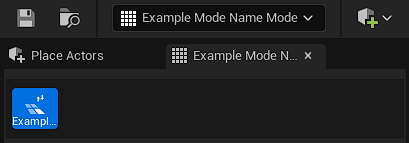
How does it look?
WORK IN PROGRESS
PRACTICAL TOOLS AS EXAMPLES COMING SOON!
For an early preview and more in depth look into a proper implementation of those systems, please have a look at: https://github.com/Iannis623/UE-GridGen